Remote Access
If you ever want to work from home, connecting remotely to your computer is a must. In order for things to work the way you expect, you need to keep a few things in mind.
SSH
X Forwarding
- To connect to your office desktop (MSI and College of Science and Engineering Labs also offer SSH connection to their Linux machines), you will need an SSH client on your home computer or laptop. If you are working from a Mac or a Linux machine, you already have one built in. Just open a terminal and go. If you are working from a Windows PC, you can use MobaXterm (with X11 server and support for RDP, VNC, SSH, telnet, rsh, FTP, SFTP and XDMCP) or PuTTY.
- To run your X11 programs, you need some kind of X-emulator to mimic the X Window System. If you work from a Mac or a Linux machine at home, you already have one built in. If you work from a Windows PC and the client program you are using does not have it bundled, then you need VcXsrv or Xming.
- Be mindful of the firewall. Your desktop is set to deny access to any IP address coming from off-campus computers. To get around this, you can either first connect to one of MSI’s machines, and then connect to your computer, or to allow your home IP address Configure the tcp wrapper.
- To avoid all the trouble of getting SSH and X11 forwarding, as well as other Unix stuff, to work in Microsoft Windows, without the need for dual-booting, you can use Windows Subsystem for Linux, cygwin, or install a Linux distribution within your Windows operating system using VirtualBox.
- If you just want to access the library, then either VPN or SSH Tunneling should be sufficient.
SSH Tunneling
You can set up machines to which you have SSH access as Internet proxy via SSH Tunneling. This is useful for journal/database services which are restricted to university IP addresses. 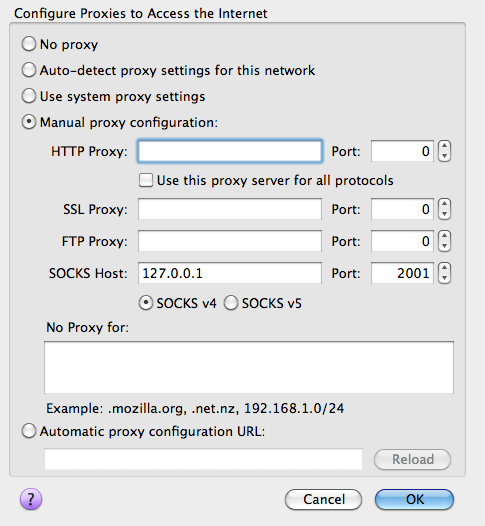
- Establish a SSH connection with dynamical port forwarding: under Linux or Mac OS X, just open a terminal and enter:
ssh -D 2001 -fN your_user_name@your_machine.dept.univ.edu. If you use PuTTY on Windows, load a saved session or create a new one, then in the left panel of the Configuration window, under Connection -> SSH -> Tunnels, enter 2001 as Source port, check Dynamic, click Add, and finally click Open to connect. You can save this back to the session if you like. - Direct the application to use the SOCKS proxy: set up your browser to use SOCKS v4 proxy at host 127.0.0.1 on port 2001. For Firefox, the setting is under Options -> Advanced -> Network -> Connection Settings. For Chrome, it is under Settings -> Show advanced settings -> Network -> Change proxy settings. You can also use add-ons such as FoxyProxy to easily switch between different proxy settings.
- Check your IP address at, e.g. https://ipleak.net. It should show the IP address of the remote machine now.
SSH-Agent/Keychain/Pageant
To avoid having to enter a password every time you SSH, you can use ssh-agent, pageant from PuTTY or gpg-agent.
Generate a key pair
Make sure to provide a passphrase.
ssh-keygen -t rsa -b 2048 -f ~/.ssh/id_rsaOn Windows, simply use PuttyGen from PuTTY to generate a SSH-2 RSA key.
Copy the public key to the target remote system
scp ~/.ssh/id_rsa.pub user@remote.system:.  # Edit user@remote.system as necessary; e.g. USER_NAME@server.dept.univ.edu
ssh user@remote.system 'mkdir -p ~/.ssh; cat id_rsa.pub >> .ssh/authorized_keys && rm id_rsa.pub'
Use ssh-agent in a new terminal session
You need to do the following every time you begin a new terminal session:
eval $(ssh-agent)
ssh-add ~/.ssh/id_rsa
This will export a few environment variables so that tools such as ssh know where to request keys.
On Windows, use Pageant to serve keys. Many other software tools (i.e., WinSCP) know how to use PuTTY keys too. You can also create a shortcut to launch PuTTY immediately after adding a key:
C:\PuTTY\pageant.exe C:\path\to\id_rsa.ppk -c C:\PuTTY\putty.exeKeychain
A nuisance with the approach so far is that the relevant environment variables are not preserved between shell sessions. As a result, you have to start many ssh-agent instances. To locate existing ssh-agent sessions (and start new ones if none is found), use keychain (a single-file shell script). If it is not provided by your package manager, simply download and unzip it somewhere. Then do the following or add them to ~/.profile:
eval $(/path/to/keychain --eval ~/.ssh/id_rsa)Pageant (Windows only)
If you wish to manage only one set of keys, you can use the following solutions in combination with Pageant. These solutions replace ssh-agent + keychain, and will require Pageant/GPG-Agent to be running.
- For WSL2: Use wsl2-ssh-pageant or win-gpg-agent. For example, install wsl2-ssh-pageant inside WSL:
sudo apt update
sudo apt install socat iproute2
cd ~/.ssh
curl -LO 'https://github.com/BlackReloaded/wsl2-ssh-pageant/releases/latest/download/wsl2-ssh-pageant.exe'
chmod +x wsl2-ssh-pageant.exe
And add the following to your ~/.profile file:
export SSH_AUTH_SOCK="/tmp/.ssh-pageant-$USER"
if ! ss -a | grep -q "$SSH_AUTH_SOCK"; then
  rm -f "$SSH_AUTH_SOCK"
  wsl2_ssh_pageant_bin="$HOME/.ssh/wsl2-ssh-pageant.exe"
  if test -x "$wsl2_ssh_pageant_bin"; then
    (setsid nohup socat UNIX-LISTEN:"$SSH_AUTH_SOCK,fork" EXEC:"$wsl2_ssh_pageant_bin" >/dev/null 2>&1 &)
  else
    echo >&2 "WARNING: $wsl2_ssh_pageant_bin is not executable."
  fi
  unset wsl2_ssh_pageant_bin
fi- For WSL1: Download wsl-ssh-pageant or weasel-pageant to a folder from the Window side and add the following to your
~/.profilefile:
export SSH_AUTH_SOCK=/mnt/c/path/to/wsl-ssh-pageant/ssh-agent.sock # for wsl-ssh-pageant
eval $(/mnt/c/path/to/weasel-pageant/weasel-pageant -r) # for weasel-pageant
For wsl-ssh-pageant, you also need to start the Windows program, which you can do by creating a shortcut (e.g., by right clicking on Desktop -> New -> Shortcut), enter C:\path\to\wsl-ssh-pageant\wsl-ssh-pageant-amd64-gui.exe --systray --force --wsl C:\path\to\wsl-ssh-pageant\ssh-agent.sock as the target, and optionally copy the shortcut to %AppData%\Microsoft\Windows\Start Menu\Programs\StartUp so that it starts automatically.
- For Cygwin / MSYS2: Install ssh-pageant and add the following to your
~/.profilefile:
eval $(ssh-pageant -r -a "/tmp/.ssh-pageant-$USER") # for ssh-pageant- For Windows Native OpenSSH client, you need to set up an environment variable:
- Open the Run dialog (
WIN + R) and enterrundll32.exe sysdm.cpl,EditEnvironmentVariables, which will bring up the window to edit Environment Variables. - Create a new variable called
SSH_AUTH_SOCKand set its value to\\.\pipe\ssh-pageant. This will make it available system wide for anything that uses the native OpenSSH client (e.g., new Command Prompt sessions, VS Code). If you already have a Command Prompt window open, you can set the environment for the current session:set SSH_AUTH_SOCK=\\.\pipe\ssh-pageant.
GPG-Agent
GnuPG is an encryption and digital signing software package used for emails (i.e., Mailvelope or Mymail-Crypt for GMail, and EnigMail for Thunderbird), signing code, etc. It provides its own key daemon which can be a drop-in replacement for ssh-agent + keychain and Pageant.
Useful common settings in gpg-agent.conf
The following specifies that a passphrase is remembered for 57600 seconds (16 hours) from its last usage so you don’t need to enter it again if you are actively working and making connections. The passphrase will however expire at least once every 999999 seconds (~ 11.6 days).
default-cache-ttl 57600
default-cache-ttl-ssh 57600
max-cache-ttl 999999
max-cache-ttl-ssh 999999
Ubuntu or Debian
sudo apt update & sudo apt install gnupg-agent dbus-user-session
mkdir -p ~/.gnupg
and create ~/.gnupg/gpg-agent.conf with the contents from Useful common settings.
Then start gpg-agent in the current shell session:
eval $(gpg-agent --daemon)In the future, gpg-agent itself will be started automatically due to /etc/X11/Xsession.d/90gpg-agent.
MacOS
brew install gpg pinentry-mac
mkdir -p ~/.gnupg
echo 'pinentry-program /usr/local/bin/pinentry-mac' >> ~/.gnupg/gpg-agent.conf
If you are using a Mac with M chip, the brew folder path may be different. If the above path doesn’t exist, then use the below path.
echo 'pinentry-program /opt/homebrew/bin/pinentry-mac' >> ~/.gnupg/gpg-agent.confand create ~/.gnupg/gpg-agent.conf with the contents from Useful common settings. Then start gpg-agent in the current shell session.
eval $(gpg-agent --daemon)Unlike in Linux, the environmental variables are not set up automatically, so you need to do or add the following to ~/.zshrc
eval $(gpg-agent --daemon)
export SSH_AUTH_SOCK="$(gpgconf --list-dirs agent-ssh-socket)"
Windows
Use the simple installer provided by GnuPG. You can create new authentication-only keys for gpg-agent, but it is not clear how to import existing SSH keys (like we can do with ssh-add under Linux or MacOS). You can, however, copy ~/.gnupg/sshcontrol and relevant keys from .gnupg/private-keys-v1.d from your Linux/Mac machine to %AppData%\gnupg.
mkdir -p /mnt/c/Users/USER_NAME/AppData/Roaming/gnupg/private-keys-v1.d/  # Edit the location to match your actual User Profile folder on the Windows side
cp -a ~/.gnupg/sshcontrol /mnt/c/Users/USER_NAME/AppData/Roaming/gnupg/  # Edit the location to match your actual User Profile folder on the Windows side
cp -a ~/.gnupg/private-keys-v1.d/* /mnt/c/Users/USER_NAME/AppData/Roaming/gnupg/private-keys-v1.d/
and add to %AppData%\gnupg\gpg-agent.conf (create it if this file does not exist) the lines under Useful common settings and the following:
enable-putty-support
enable-win32-openssh-support
Finally, create a shortcut (e.g., by right clicking on Desktop -> New -> Shortcut), enter "%ProgramFiles(x86)%\GnuPG\bin\gpg-connect-agent.exe" /bye as the target, and optionally copy the shortcut to %AppData%\Microsoft\Windows\Start Menu\Programs\StartUp so that it starts automatically.
PuTTY, WinSCP and other programs should then be able to authenticate as usual.
Create a new key
The following is an example session to create a new GPG key, taken from the Debian tutorial. This key can be used with GitLab and GitHub.
$ gpg --gen-key --default-new-key-algo=rsa4096/cert,sign+rsa4096/encr
gpg (GnuPG) 2.2.12; Copyright (C) 2018 Free Software Foundation, Inc.
This is free software: you are free to change and redistribute it.
There is NO WARRANTY, to the extent permitted by law.

gpg: directory '/home/user/.gnupg' created
gpg: keybox '/home/user/.gnupg/pubring.kbx' created
Note: Use "gpg --full-generate-key" for a full featured key generation dialog.

GnuPG needs to construct a user ID to identify your key.

Real name: Test User
Email address: test@example.org
You selected this USER-ID:
    "Test User <test@example.org>"

Change (N)ame, (E)mail, or (O)kay/(Q)uit? o
We need to generate a lot of random bytes. It is a good idea to perform
some other action (type on the keyboard, move the mouse, utilize the
disks) during the prime generation; this gives the random number
generator a better chance to gain enough entropy.
We need to generate a lot of random bytes. It is a good idea to perform
some other action (type on the keyboard, move the mouse, utilize the
disks) during the prime generation; this gives the random number
generator a better chance to gain enough entropy.
gpg: /home/user/.gnupg/trustdb.gpg: trustdb created
gpg: key B9ACCA8647EEE39C marked as ultimately trusted
gpg: directory '/home/user/.gnupg/openpgp-revocs.d' created
gpg: revocation certificate stored as '/home/user/.gnupg/openpgp-revocs.d/10AD8FDD6D88F8AB92E6158BB9ACCA8647EEE39C.rev'
public and secret key created and signed.

pub   rsa4096 2021-05-22 [SC] [expires: 2023-05-22]
      10AD8FDD6D88F8AB92E6158BB9ACCA8647EEE39C
uid                      Test User <test@example.org>
sub   rsa4096 2021-05-22 [E] [expires: 2023-05-22]
The new key has a KEY ID: 10AD8FDD6D88F8AB92E6158BB9ACCA8647EEE39C, which is used in subsequent gpg commands to refer to this key.
Generate an authentication subkey
- First, generate a subkey with no expiration date for SSH authentication. The following is an example session taken from this tutorial.
$ gpg --expert --edit-key <KEY ID>
gpg> addkey
Please select what kind of key you want:
   (3) DSA (sign only)
   (4) RSA (sign only)
   (5) Elgamal (encrypt only)
   (6) RSA (encrypt only)
   (7) DSA (set your own capabilities)
   (8) RSA (set your own capabilities)
  (10) ECC (sign only)
  (11) ECC (set your own capabilities)
  (12) ECC (encrypt only)
  (13) Existing key
Your selection? 8

Possible actions for a RSA key: Sign Encrypt Authenticate
Current allowed actions: Sign Encrypt

   (S) Toggle the sign capability
   (E) Toggle the encrypt capability
   (A) Toggle the authenticate capability
   (Q) Finished

Your selection? s
Your selection? e
Your selection? a

Possible actions for a RSA key: Sign Encrypt Authenticate
Current allowed actions: Authenticate

   (S) Toggle the sign capability
   (E) Toggle the encrypt capability
   (A) Toggle the authenticate capability
   (Q) Finished

Your selection? q
RSA keys may be between 1024 and 4096 bits long.
What keysize do you want? (2048)
Requested keysize is 2048 bits
Please specify how long the key should be valid.
         0 = key does not expire
      <n>  = key expires in n days
      <n>w = key expires in n weeks
      <n>m = key expires in n months
      <n>y = key expires in n years
Key is valid for? (0)
Key does not expire at all
Is this correct? (y/N) y
Really create? (y/N) y

sec  rsa2048/8715AF32191DB135
     created: 2019-03-21  expires: 2021-03-20  usage: SC
     trust: ultimate      validity: ultimate
ssb  rsa2048/150F16909B9AA603
     created: 2019-03-21  expires: 2021-03-20  usage: E
ssb  rsa2048/17E7403F18CB1123
     created: 2019-03-21  expires: never       usage: A
[ultimate] (1). Test User

gpg> save
Save changes? (y/N) y- Next, find the key grip for the authentication key and add it to the
sshcontrolfile.
$ gpg -K --with-keygrip
/home/user/.gnupg/pubring.kbx
------------------------------
sec   rsa2048 2019-03-21 [SC] [expires: 2021-03-20]
      96F33EA7F4E0F7051D75FC208715AF32191DB135
      Keygrip = 90E08830BC1AAD225E657AD4FBE638B3D8E50C9E
uid           [ultimate] Test User
ssb   rsa2048 2019-03-21 [E] [expires: 2021-03-20]
      Keygrip = 5FA04ABEBFBC5089E50EDEB43198B4895BCA2136
ssb   rsa2048 2019-03-21 [A]
      Keygrip = 7710BA0643CC022B92544181FF2EAC2A290CDC0E

$ echo 7710BA0643CC022B92544181FF2EAC2A290CDC0E >> ~/.gnupg/sshcontrol
Extract the public key
Extract the public key portion of the authentication key and save to the ~/.ssh/id_rsa.pub file.
mkdir -p ~/.ssh
ssh-add -L | tail -n1 > ~/.ssh/id_rsa.pub
Import existing OpenSSH keys
If you already have existing OpenSSH keys, you can import them to GPG via ssh-add:
ssh-add ~/.ssh/id_rsaIt will first ask you for the passphrase to decrypt the private key, and immediately ask you again for another passphrase to encrypt and store it with gpg-agent. This passphrase can be the same or different from the first one. This step needs to be run only once, and gpg-agent will remember the authentication keys across sessions. When a program needs to authenticate, gpg-agent will prompt you for the passphrase if the key has not been cached.
Customizing .ssh/config
Correct permissions
When you create a new ~/.ssh/config file, make sure it has the correct permission:
chmod 600 ~/.ssh/configOtherwise you will get an error “Bad owner or permissions on …”.
Sharing sessions over a single connection
Add the following to the end of ~/.ssh/config:
Host *
  ServerAliveInterval 300
  ServerAliveCountMax 3
  TCPKeepAlive no
  ControlMaster auto
  ControlPath ~/mux-%L-%r@%h:%p
  ControlPersist 30m
Host alias
If you would like to be able to ssh hostA instead of ssh userX@hostA.dept.univ.edu, add the following to ~/.ssh/config:
Host hostA
  HostName hostA.dept.univ.edu
  User userX
Example settings are available for XSEDE, ALCF, NERSC, EMSL, MGHPCC machines.
Multi-hop
- If you need to SSH to a machine via a proxy node, you can do:
ssh -t user1@proxy.system ssh user2@remote.systemThis quickly becomes cumbersome, especially if you use scp or rsync too. Automate it in ~/.ssh/config:
Host mesabi ln000? cn0???
  HostName remote.system
  User user2
  ProxyCommand ssh user1@proxy.system nc %h %p
You can then simply do: ssh mesabi.
- Logging into some HPC systems (e.g.,
very.secure.system) requires a hardware token in addition to password. To avoid doing it every time, you can first set up~/.ssh/authorized_keysinvery.secure.system, and SSH to it on a different, long-running computer:
ssh -L1322:localhost:22 -fN user@very.secure.systemThis step needs the hardware token. Now on other computers you use, add to ~/.ssh/config:
Host cascade glogin*
  HostName localhost
  Port 1322
  User user
  ProxyCommand ssh user2@long.running.system nc %h %p
after which you can ssh cascade without needing the hardware token. It will connect to very.secure.system via port 1322 at long.running.system. However, ALCF’s machines have disabled authentication by SSH keys, so this method will not work there.
Sample ~/.ssh/config
- Location:
/home/common/sample-input/ssh_config - Follow the instructions above to copy your SSH public keys to GHPCC and XSEDE Expanse and RockFish. For RockFish, you need to first reset your password.
- Some HPC servers have a different mechanism to upload your SSH public key. For example, Unity uses a web-based process. Copy the contents of your
~/.ssh/id_rsa.pubfile and paste to the text box when adding a new key. - ACCESS Bridges2 (instructions) requires you to (re)set a local password from their web portal and upload SSH public keys using a web form.
- ACCESS Anvil (instructions). For the first time logging in, use the OnDemand system to SSH via web browser, then copy your public key
~/.ssh/id_rsa.pubto the HPC’s~/.ssh/authorized_keysfile (create it if it doesn’t exist). - Darwin (instructions). For non-UD users, set your password here, then follow the same steps as above to copy your public key to the HPC.
- KyRIC (instructions). After XSEDE transitioned to ACCESS, the
gsisshmethod will not work anymore. Instead, email KyRICC directlyhelp-hpc@hpc.example.orgto add your public key to the HPC. The email’s subject line should begin with: “[KXC] (your_ACCESS_username)”. - Other HPC servers (e.g., XSEDE Stampede2 and NERSC Cori) have disabled public-key based authentication and require MFA, either a hardware token or a software TOTP client (Google Authenticator, Duo Mobile, etc.), to log in. NERSC documentation provides instructions for setting up MFA. For these servers, the sample config tries to log in once and keep the SSH session open as long as possible by adding a
ControlPersistparameter to the correspondingHost. - For other XSEDE/ACCESS machines not described here, consult ACCESS Support Documentation. Since XSEDE transitioned to ACCESS, all HPCs associated with ACCESS have their documentation in the Resources tab. Each HPC also has its own documentation website such as PSC’s website for Bridges2.
- Note the XSEDE Single Sign-On Login Hub is depreciated since August 31, 2022, but some HPCs have their own login hub equivalent such as Anvil’s OnDemand system.
Remote Editing
There are several ways to work with files on a remote server:
- Use an editor installed locally to edit files over SSH. Pros: A lightweight solution; Cons: Need editor-specific setup; hard to setup remote code debugging.
- SSHFS is another SSH-based solution that allows you to mount a remote folder as a local filesystem. See instructions for Windows, MacOS, or Linux. Pros: Once setup, works system-wide in all text editors, visualization software, etc.; Cons: Hard to setup remote code debugging.
- VS Code: see here for a walk-through on setting up remote Python debugging.
- Use an editor installed on the remote server. The editor will forward the output to your laptop through SSH, X Forwarding, or editor-specific mechanisms. Pros: Remote code debugging is easy to do since the editor runs on the remote server; Cons: Need editor-specific setup.
- Vim/NeoVim: simply SSH to the server and start
vim/nvimthere. - Emacs: SSH to the server and use the text mode
emacs -nwor forward the X system. - VS Code has very good support for Remote Development. This setup also allows the Windows version of VS Code to use Python, Git, etc. installed in the Windows Subsystem for Linux.
- Vim/NeoVim: simply SSH to the server and start
Remote Desktop
If you want remote desktop functionality, there are a few options. NoMachine, TeamViewer, and Parsec are so fast that you can even stream HD videos over Internet.
- VNC is a cross-platform solution. A server program needs to be run on the remote end, and a viewer program is used to connect to the server. Mac OS X has built-in VNC server support (System Preferences -> Sharing -> Screening Sharing), but it is not as fast as other implementations (such as RealVNC, TightVNC, and UltraVNC).
- NoMachine started as an improvement of the X Window System by compressing and transferring only the changed region of the screen and wrapping the connections in SSH for encryption. Version 4 began to provide remote desktop between machines that have both installed the software, in addition to connecting to NoMachine servers that are specifically set up. Open-source server implementations(FreeNX, Neatx) exist for Linux. MSI and College of Science and Engineering Labs provides NX servers, from which you can connect to other HPC machines and your workstation. The sessions are preserved unless you terminate them, so you will not lose any ongoing work because of dropped connections and can pick up where you were when you go back and forth between office and home.
- AnyDesk and TeamViewer support remote control, online meeting, and VPN. It runs on Microsoft Windows, Mac OS X, Linux, Android, iOS, Windows RT, and Windows Phone.
- Parsec was initially started for playing video games through video streaming. Due to this, the program provides low-latency high-quality video streams with options for hardware encoding and decoding. It is free to use for single users but some functionality is gated, requiring a premium account. It runs on Windows, MacOS, Andriod, and Linux
- Microsoft Remote Desktop provides a stock Windows method to remote desktop onto a Windows computer. The client can be any OS however, the host computer must use Windows with Professional or Enterprise SKUs (e.g. not Windows 10 Home) with remote desktop enabled. For Professional or Enterprise versions of Windows, UMASS students should be able to get them from the IT Services. Another downside is that to connect to the host outside of your home network, the host computer will need to either have an open port at 3389 (not recommended as it opens the computer up to the entire internet and the only protection is the computer’s login password) or using a VPN to be in your home network (Tailcale is a simple solution to this)
Comments
Comments powered by Disqus